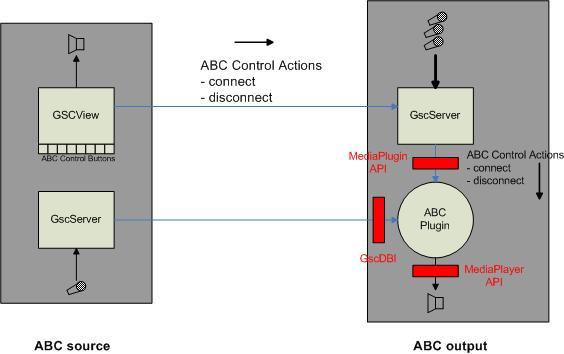
The ABC plugin may be used to create a uni/bidirectional (full duplex) audio communication between different components of the GeViScope/re_porter environment. Application scenarios are for example:
The ABC function is not thought to replace professional Intercom technology. Its principal transmission latency of about 500ms makes real intercom applications inconvenient. It just represents a simple means to transmit audio from a GSCView workstation to other devices which have the necessary ABC plugin software installed. Nevertheless the architectural approach of the feature allows quite flexible communication scenarios.
The ABC function is implemented as a GeViScope media plugin device. It requires the availability of the ABC plugin on the system which is to output the audio backchannel on its loudspeakers (ABC output). To access the audio source a GSCServer must be installed on the system which represents the input of the audio backchannel (ABC source). The audio device may be a microphone or any other audio component which may be connected to the PC audio input. This architectural approach allows different application scenarios which are to be explained in the following paragraphs together with the necessary setup parameters in both the ABC source and the ABC output.
The ABC function is working completely independent of the DSP audio inputs of GeViScope. It may be used even if GeViscope/re_porter is not using its audio inputs (unidirectional audio for example for the announcement function). In the following just the ABC function is explained. The common audio functions of the GSC/re_porter system are not influenced and may be used as accustomed.
The image shows the basic communication architecture of ABC. In that installation the function may be used to send audio from a microphone on the GSCView workstationto either:
1. a fixed (but connected) GeViScope independently from the video presentation
2. the GeViScope which has the video channel which is presented in the active viewer of GSCView
3. all GeViScopes which are currently connected to GSCView (audio broadcast)
The ABC behaviour 1,2 or 3 may be parametrized in GSCView and is dependent on the setup for the ABC control buttons. ABC works in the following way:
To get that function running there is some setup work (GSCSetup ABC source, GSCSsetup ABC output, Setup GSCView) necessary which is described in the following instructions.
The following describes a step by step setup for the application scenario of this paragraph. Based on that example the realization of other types of applications (like an GSCView ↔ GSCView intercommunication) should be simple.
ABC source
Before starting you should make sure that the system audio channel is working at all and the microphone input is processed by Windows. A test with the Windows audio recorder function shows that.
a) (virtual) GSCServer setup
After that the source system offers a network audio channel.
b) GSCView setup
ABC source address in the ABC_Connect actions represents the IP address or network name of the ABC source system. If the button is pressed the “Action on mouse down” is sent to the remote GSC. Its ABC plugin receives it and connects to the IP address parameter of the ABC_Connect Attention: Do not mix up the IP addresses of the ABC source and ABC output system. If the button is released that action is as well transmitted to the remote GSC.It tells the ABC plugin to close the IP connection and henceforth to mute the audio transmission.
If you would like to connect the ABC just to a fixed server you can select it in the “Send to” option of the “Speak” button. This could perhaps be necessary in an installation where multiple GSCs are remotely installed at the same site but just one has a loudspeaker connected.
ABC output
On the GSC which is to output an ABC channel do the following:
Before starting you should make sure that the system audio output is working at all. Connect a loudspeaker and try to play an audio sample with the media player.
That procedure must be done on each GSC which is to output audio from the ABC source system.
In the hardware dialog of the ABC output system you may adjust some parameters which control the behaviour of the audio backchannel:

| Default volume | Defines the default loudness of the audio output |
| GSCChannel | That is the name of the audio channel on the ABC source system. The default is AUDIOBACKCHANNEL |
| GSC user name GSC password |
The connection between the ABC plugin and the ABC source server needs a normal GSC account. The default is “sysadmin” “masterkey”. If you want to use another account you can change it here. That account must be available in the setup of the ABC source system |
| Prebuffer latency Runtime latency |
These parameters influence the audio transmission latency. To have an audio transmission without stream interruption a certain buffering is necessary. If there are audio interruptions you may reduce them by increasing the latencies |
ABC is controled by special ABC-actions. These actions may be created by any software which interfaces either GeViScope or GeViSoft. This needs not to be just GSCView but may be used in Multimap or SDK clients as well to control the establishment of ABC audio connections. If for example Multimap is used to control GSCView remotely you may add ABC control buttons to Multimap maps instead of controling ABC from GSCView. You may even use MBEG or any other hardware / software interface of GeViSoft to control the ABC function.
ABC connections are controled by the following GSC actions:
- Low bandwidth connections between GSCView and GSC. The ABC live channel needs a minimum of 128 kbit / second. Playing of predefined audio files does not consume bandwidth
- the surveillance staff has no possibility to misuse the live function or to make stupid audio comments via live connections
- clearer understandable speech if a predefined reaction is possible. Not dependend from the clarity of speech of the guards.
- Possible to be controled from Multiview with custom buttons which address different announcements.
- Audio error messages on the GSC. All SystemError/Warning actions may be mapped to an audio message
- Automatically
produced audio messages for example by video sensor actions “You are
trespassing a forbidden zone …”
The control is done by the action:
ABCPlayFile
with the parameters:
The playback of audio files and file loops may be
interrupted with the ABC_Disconnect action. The audio files should reside in
the GSC home directory.